Google Play Target API Level Requirement: How to Update Your Expo or React Native App (and What Breaks)
"Your app currently targets API level X and must target at least API level Y." What Google Play's yearly target API requirement means, how to raise your target in Expo and React Native, and the behavior changes to test before you ship.
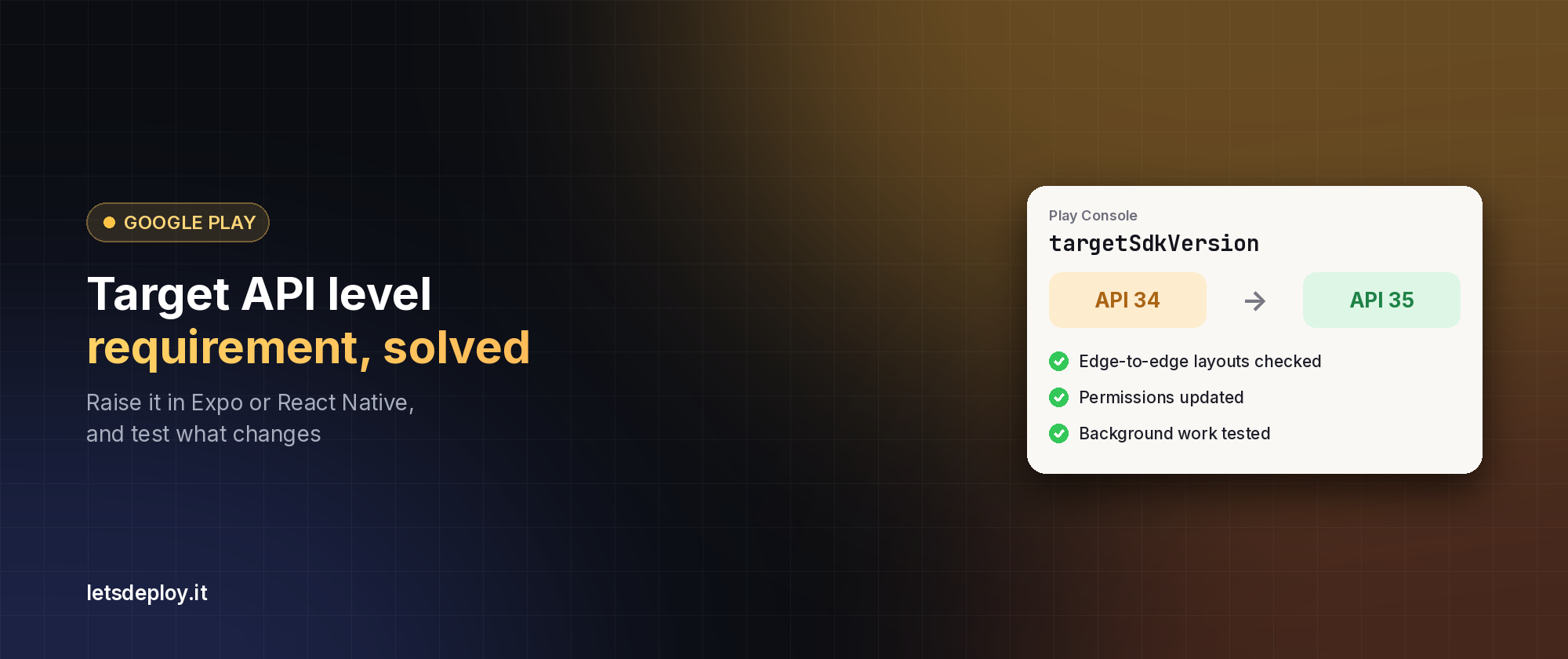
every year, Google Play raises the minimum target API level for new apps and updates. If your app targets an older Android version, Play Console blocks your update until you raise it. In Expo, the target comes from your Expo SDK version, so upgrading the SDK is usually the cleanest fix; you can also set it with expo-build-properties. Raising the target changes how Android treats your app (edge-to-edge layouts, permissions, background work), so test on the newest Android version before releasing.
It usually arrives as a Play Console warning, then a hard block on your next update:
Your app currently targets API level 34 and must target at least API level 35 to ensure it is built on the latest APIs optimized for security and performance.
The good news: for most Expo and React Native apps, this is a routine upgrade. The part that needs care is testing what changes when Android treats your app as "modern".
From LetsDeployIt, where we take Expo and AI-built apps through Google Play and App Store review.
What is the target API level?
Every Android app declares three SDK versions:
- minSdkVersion: the oldest Android version the app can be installed on.
- compileSdkVersion: the Android version the app is compiled against.
- targetSdkVersion: the Android version the app is designed and tested for. Android uses it to decide which newer behaviors to apply.
Google Play's requirement is about targetSdkVersion. Your app can still support older phones; it just has to declare that it's ready for recent Android behavior.
What does Google Play require, and when?
Google raises the requirement once a year, typically with a deadline around the end of August:
- New apps and app updates must target a recent Android version (in 2025, that meant Android 15, API level 35, for most apps).
- Existing apps that aren't updated must still target a reasonably recent level to stay available to new users on newer devices.
- Extensions have been offered on request for a few months past the deadline.
- Wear OS, Android TV and Automotive apps have their own requirements.
The exact level and dates change every year, so check the target API requirements page in Google Play's help center and the warnings in your Play Console.
How do I check my app's current target?
In Play Console, the warning tells you. In your project:
npx expo config --type introspect
Search the output for targetSdkVersion. In a project with an android/ folder, you'll also find it in android/build.gradle or android/app/build.gradle.
How do I raise the target API level in Expo?
Option 1: Upgrade the Expo SDK (recommended)
Each Expo SDK release sets compile and target SDK versions that match Google Play's current requirements, along with compatible versions of React Native and every Expo module. Upgrading the SDK raises your target with a set of libraries that are tested together:
npx expo install expo@^NEXT.0.0   # replace NEXT with the target SDK number
npx expo install --fix
npx expo-doctor
Upgrade one SDK at a time and read each release's notes.
Option 2: Set it with expo-build-properties
If you can't upgrade the SDK right away, you can set the Android SDK versions explicitly:
{
  "expo": {
    "plugins": [
      [
        "expo-build-properties",
        {
          "android": {
            "compileSdkVersion": 35,
            "targetSdkVersion": 35
          }
        }
      ]
    ]
  }
}
This is a stopgap. Libraries in an older SDK weren't necessarily tested against the newer target, so test thoroughly, and plan the SDK upgrade soon after.
Bare React Native projects
Update compileSdkVersion and targetSdkVersion in android/build.gradle, and upgrade React Native to a version that supports the new level. The React Native Upgrade Helper shows the native file changes between versions.
What breaks when I raise the target?
Raising the target opts your app into newer Android behavior. The areas that most often need attention in React Native apps:
Edge-to-edge layouts
Apps targeting Android 15 are displayed edge-to-edge by default: content draws behind the status bar and navigation bar. Screens that assumed the system bars took up space can end up with headers under the status bar or buttons under the gesture bar.
Fix: use react-native-safe-area-context (SafeAreaView or useSafeAreaInsets) on every screen, and check bottom buttons, tab bars and modals on a device with gesture navigation.
Permissions
Recent Android versions tightened several permissions, for example:
- Notifications need a runtime permission (since Android 13).
- Photo and video access moved to granular media permissions, with users able to grant access to selected photos only (Android 14).
- Exact alarms and foreground services need specific declarations and permission types.
Fix: update the libraries that request these permissions, request them at the moment the feature is used, and handle "denied" and "partially granted" gracefully.
Background work
Restrictions on background services and alarms have grown each year. If your app syncs, plays audio, tracks location or schedules reminders in the background, test those features specifically.
Third-party libraries
Old versions of native libraries may crash or misbehave on newer targets. Update every package with native code and check its changelog for target API notes.
How should I test before releasing?
- Build a release version:
eas build --platform android --profile production. - Install it on an emulator or device running the newest Android version.
- Walk through every screen, checking for content under the status or navigation bar.
- Test every permission flow: grant, deny and partial grant.
- Test background features with the app closed.
- Upload to Play Console's internal testing track and check for new warnings before promoting to production.
How do I avoid the yearly scramble?
- Stay within one Expo SDK of the latest. SDK upgrades keep your target current automatically.
- Watch Play Console's Policy status page, which shows upcoming requirements months ahead.
- Update native libraries regularly, not just when a deadline arrives.
- Keep native changes in config plugins, so SDK upgrades stay mechanical.
Checklist
- Check your current
targetSdkVersion. - Upgrade the Expo SDK, or set the target with
expo-build-propertiesas a stopgap. - Update all libraries with native code.
- Test edge-to-edge layouts, permissions and background work on the newest Android.
- Upload to internal testing, then release.
Conclusion
Google Play's target API requirement is a yearly fact of life for Android apps. In Expo, upgrading the SDK is the cleanest way to meet it, and the real work is testing the behavior changes that come with a newer target. Plan the upgrade before the deadline, and it stays a routine release instead of a blocked one.
If you'd rather hand off store requirements like this, LetsDeployIt takes Expo and AI-built apps through Google Play and the App Store until they're approved.
Which change caught you out the last time you raised your target API level? Share it in the comments.
About the author
- Designing with intention. Moving with precision. | Motion & Graphic Designer.
Comments
Join the discussionNo comments yet. Be the first to comment.